How to Stabilize Shaky Video
I keep noticing the same thing on YouTube, and in home videos friends send me - good framing, good light, ruined by shake. Some of it you can't avoid while filming - your hand trembles on its own, walking adds a bounce with every step, and zooming in only magnifies whatever motion is already there. There's old footage too - cameras and phones from a few years back had no stabilization at all, or only a weak early version, and it's still in people's archives.
A two-minute pass in modern stabilization software would fix most of it. Most people just don't know it's an option, or assume it means learning a complicated video editor.
4 ways to stabilize video
Most phones lean on digital stabilization while you're filming: it crops in, and then shifts that cropped area frame by frame to cancel movement. Since it has to react the instant shake happens, with no chance to look ahead, the result rarely gets past okay.
Better cameras add optical stabilization, which cancels shake in hardware by physically moving a lens element or the sensor. The correction happens before the sensor ever records the frame, so there's no cropping and no quality loss.
Gimbals and Steadicams are special rigs built just to hold a camera steady: they take the camera off your body entirely and use motors or counterweights to keep it level. The results are the best you can get, but they cost extra money and mean carrying bulky gear.
That leaves software stabilization after filming. Because it works on a finished clip rather than live footage, it can look at the whole shot, using what comes before and after each frame, before deciding how to smooth it. It's also the only one of the four that can fix footage already sitting on your drive.
Simple tips for steadier footage
If you're shooting on a smartphone, pick a model with optical image stabilization (OIS). It corrects shake optically, in hardware, before any cropping happens, so whatever digital stabilization runs afterward has less work to do and needs a smaller crop. Every iPhone since the iPhone 7 (2016) has had very good OIS on its main camera, so if you're shooting on an iPhone, you're already covered. Recent iPhones go further with Action Mode, built specifically for high-motion footage like running or cycling. You lose some frame width and low-light performance, but it holds up in situations that would otherwise defeat regular stabilization.
A handheld shot stabilized with Camera Lock, simulating a tripod
How software stabilization fixes it
Even with careful shooting, some shake always gets through, and that's where the software takes over. It looks at what the camera was doing 30 or more frames before and after each moment in the clip, works out a smooth path through all that motion, and shifts each frame to follow it, trimming the edges a little in the process.
A heavily shaken clip needs more trimming than a mostly steady one.
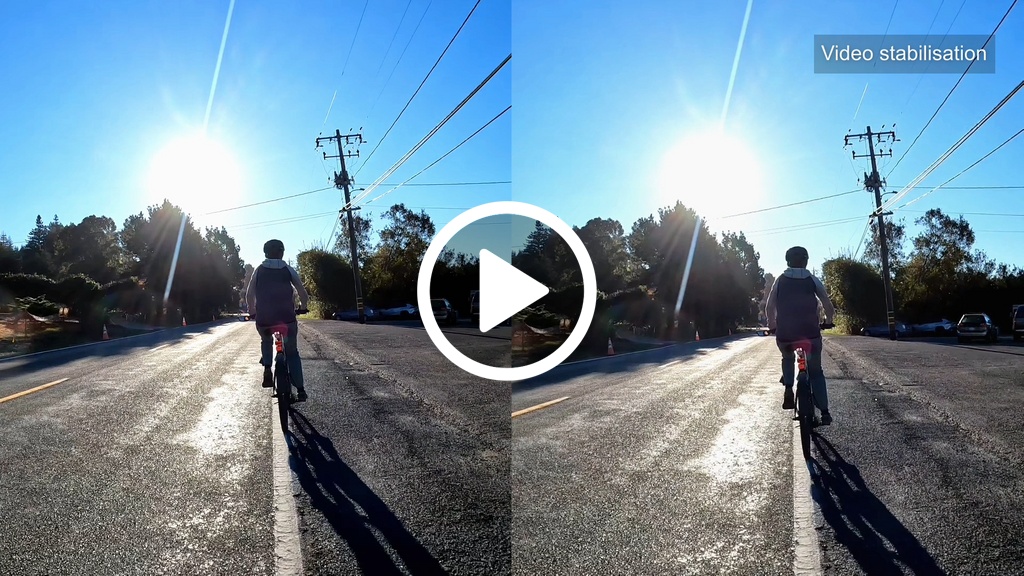
A handheld walking shot before and after Normal stabilization
Stabilizing a clip, step by step
This is the workflow I use on footage like the clips on this page, in PTE Video Optimiser, the tool WnSoft builds for Windows and macOS. There's no timeline or manual keyframing to fuss with - just four steps from import to a stabilized export:
- Click Add File to import one or more video clips.
- Tick the Stabilize checkbox.
- Choose a stabilization mode: Normal, Strong, or Camera Lock.
- Click Convert: the stabilized file is ready in a few minutes, depending on clip length and resolution.
That's the whole process - see how quick and simple it is?
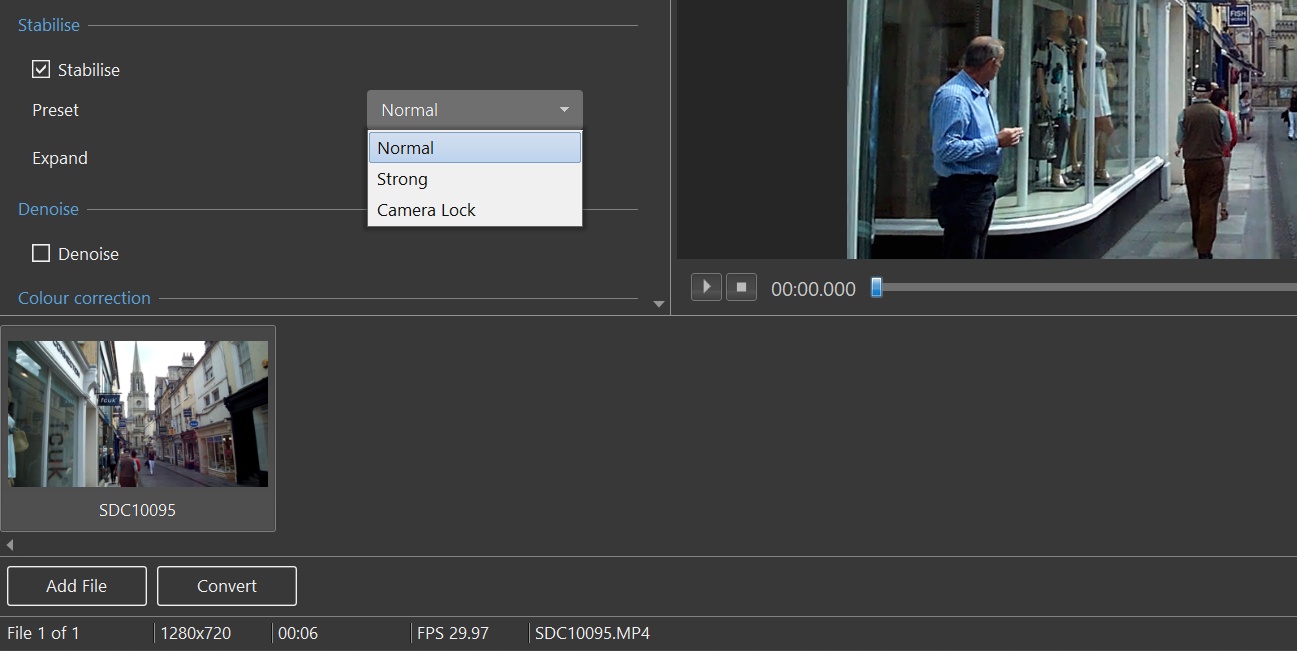
Export settings are set automatically, but frame rate, resolution, and compression are all adjustable if you want to change them.
- Normal keeps the natural motion of the shot (pans still pan, walking shots still drift a little); it just removes the jitter on top. This is what I reach for on anything with intentional camera movement.
- Strong is for footage that's too shaky for Normal to handle cleanly. It smooths out more, but the crop grows noticeably, so I try to shoot a little wider than my final framing whenever I know a clip will need it.
- Camera Lock is for shots where you were mostly standing still, trying not to move the camera - it cleans up whatever small shake still got in and makes it look like it was locked on a tripod. Good for interviews and product shots. But if you were walking or panning on purpose, it'll fight you, since it can't tell the difference between shake and motion you actually meant to capture.
FAQ
A few questions I hear most often:
Does stabilizing a video reduce its quality?
A little. As explained above, smoothing crops and repositions each frame - the crop is small and rarely noticeable on Normal, and larger on Strong or Camera Lock. Even so, the result usually looks better overall, since getting rid of the shake matters more to the eye than a small crop.
Does it work with 4K or drone footage?
Yes. The algorithm works the same way regardless of resolution. Drone footage already comes fairly stable off its own gimbal, but a pass still helps with wind gusts - especially on cheaper drones with weak built-in stabilization.
Can software stabilization fix extremely shaky footage?
Ordinary handheld shake (walking, hand tremor) stabilizes cleanly. Extreme shake is a different story. Running or mountain biking, anything where the camera takes real hits, needs so much cropping to smooth out that you either lose most of the frame or live with some wobble left over. In my testing, a 4K mountain-biking clip needed Strong plus a noticeably wider original shot just to leave room for the crop, and even then some wobble remained.
What's the real difference between Camera Lock and filming on a tripod?
A tripod removes camera motion right at the source, so you keep your full sensor resolution and there's no motion blur to correct afterward. Camera Lock gets you the same static look after the fact, by tracking the motion and canceling it out digitally. That means a crop, and it still can't undo motion blur that happened while you were filming. It can also get confused in busy scenes - like a bunch of runners crossing the frame - and lock onto the wrong thing instead of the background you actually wanted to hold still.
Try it on your footage
Grab one of your shaky clips and give it a try in PTE Video Optimiser. It takes a couple of clicks, and you'll have a smooth clip ready to export in a few minutes.
You can see a before/after example in the video below.